PowerShell and Command Prompt
by Lewis
PowerShell and Command Prompt
Powershell and Command prompt can both be used to find and hide cheats. Powershell in terms of finding cheats can be used for GCI, or as some may know it Get-Childitem. This allows you to see any file that has a directory that isn't empty. For example a python script (deleted or otherwise). Command prompt can be used to find people who may have tried to clear their USN Journal or Flush their DNS Cache.
Command Prompt
Detecting someone trying to bypass through Command Prompt:
Viewing Suspicious Commands Ran
- Go into DiagTrack in Process Hacker and do the normal setup
- Run the following command:
“/flushdns”
If “ipconfig /flushdns” shows up, it means they cleared their DNS history since the last restart.
Also:
- Run the following string:
“Fsutil deletejournal”
If something shows up, it means that they have cleared their USN Journal since the last restart.
“ipconfig /flushdns” and “Fsutil deletejournal” - This is all done in this PC instance and Modifies Files.
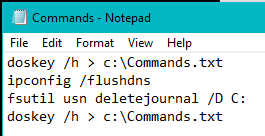
You can also check commands run in this command prompt instance by:
1. Open Command Prompt
2. Run the following command:
“doskey /h > c:\Commands.txt”
When you run the doskey command it will save the commands.txt to your C Drive.
Should look like this:
Powershell
1. Press Windows Key + R, type in Powershell
2. This should open up windows Powershell, from there type in the following:
● gci -filter *.exe -recurse -force
● gci -filter *.jar -recurse -force
● gci -filter *.rar -recurse -force
● gci -filter *.txt -recurse -force
GCI should look like this:
This allows you to see any file that has a directory or any contents. You can use this to see any previous custom clients or really bad clients that they may be using. You can change the file extension to any type. This allows you to check for doxes, cheats, booters, and anything else you could want. You should also press the up arrow key on Powershell in order to see previous commands run.
