Using Tool Designer
by Reassembly
Using Tool Designer
The tool designer is a way to make echo look like your own tool, it lets you customize the design.
- Go to the sidebar, click “Customization” and click “tool designer”
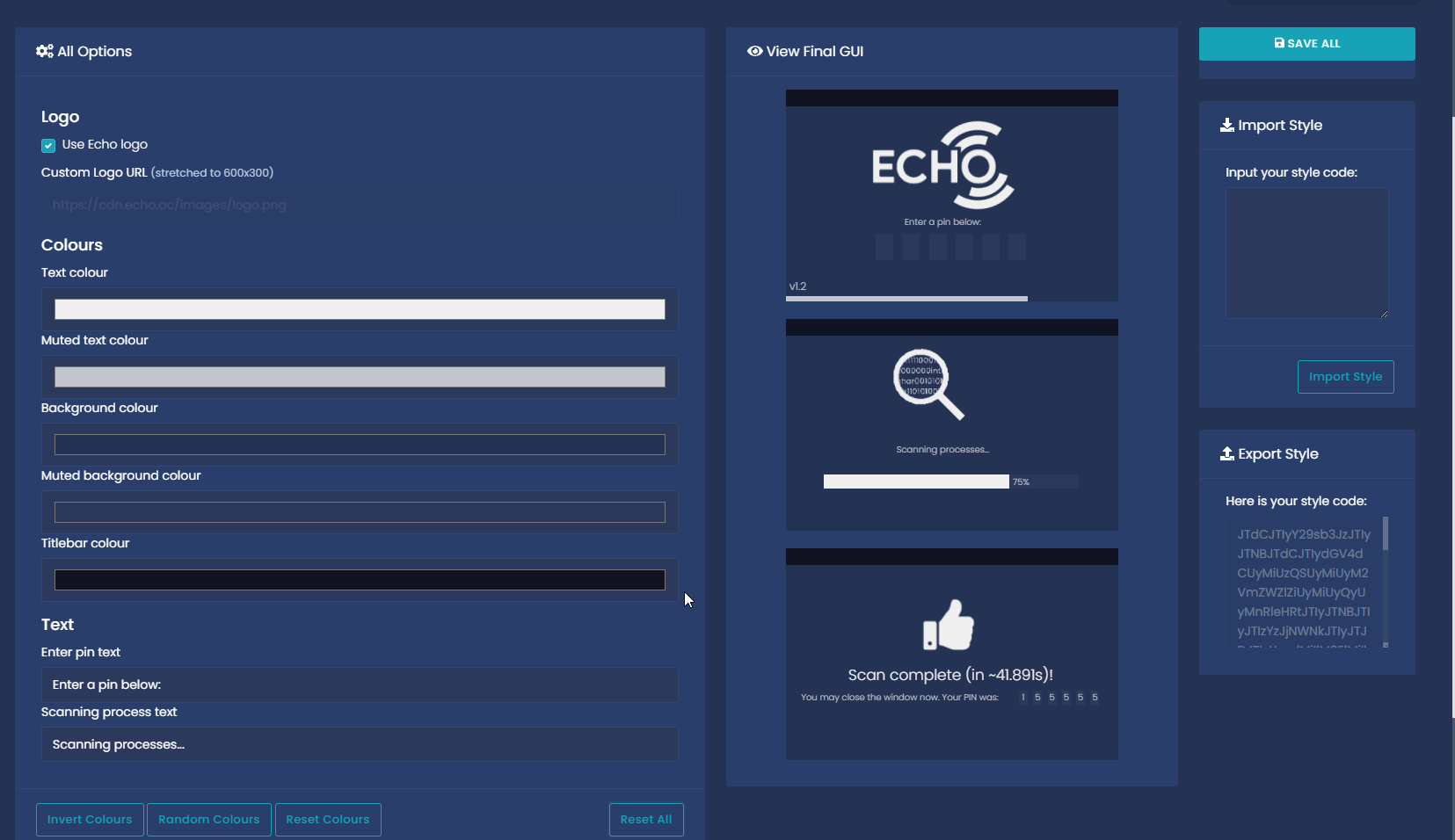
-
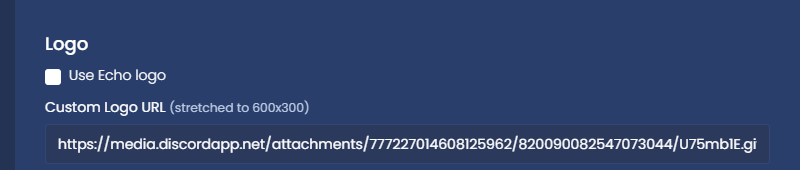
Where it says “Logo”, you can untick “Use Echo logo” and paste in a custom image link in the box below
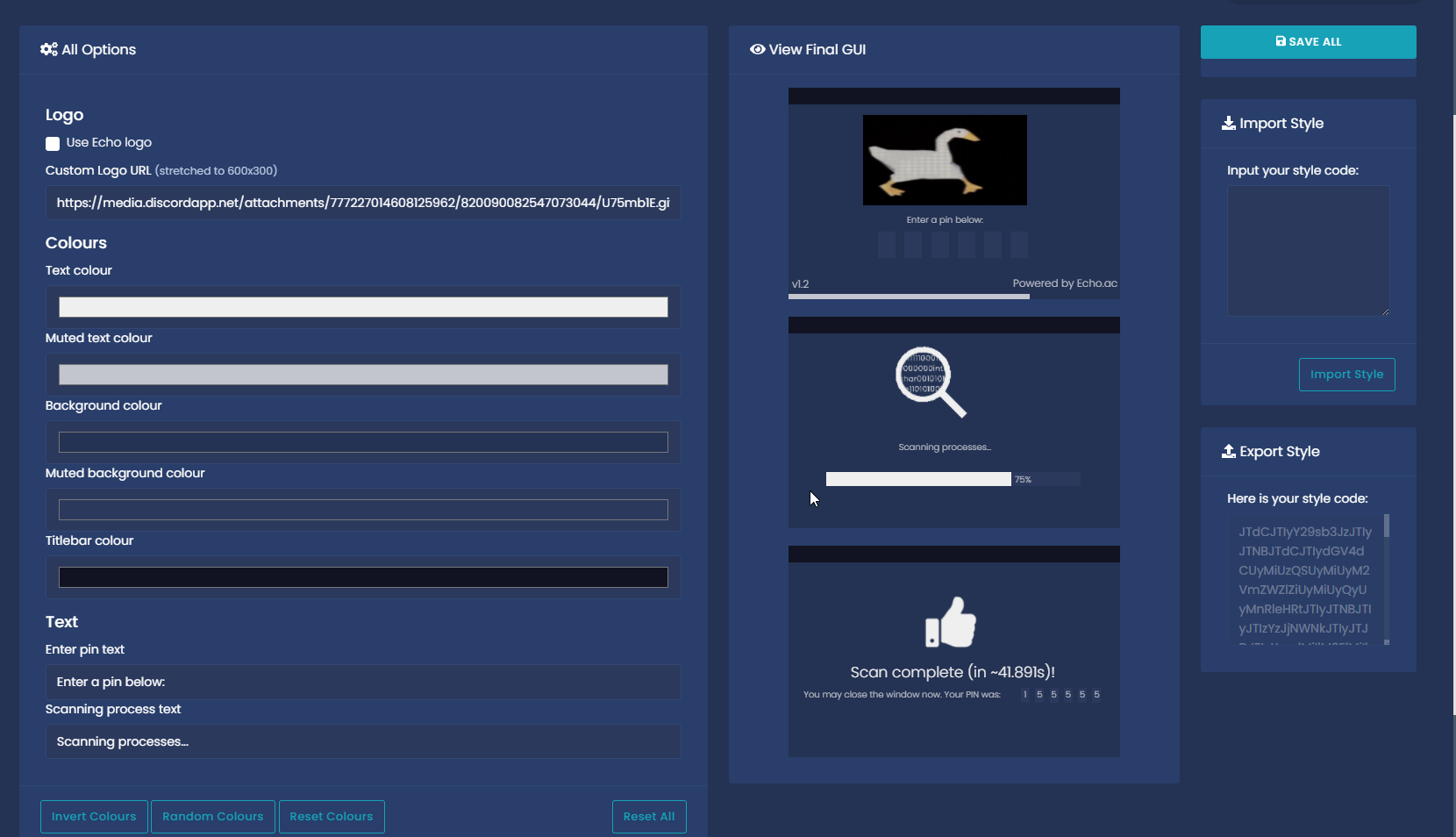
If you have done this correctly. You should now see your custom image on the tool showcase on the right
Below that there is the colours section. If you click on one of the colour bars below, It will open a colour selector GUI
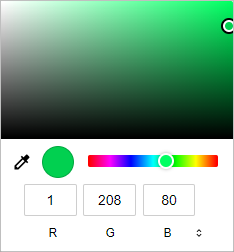
Once selected, the GUI Example should change again
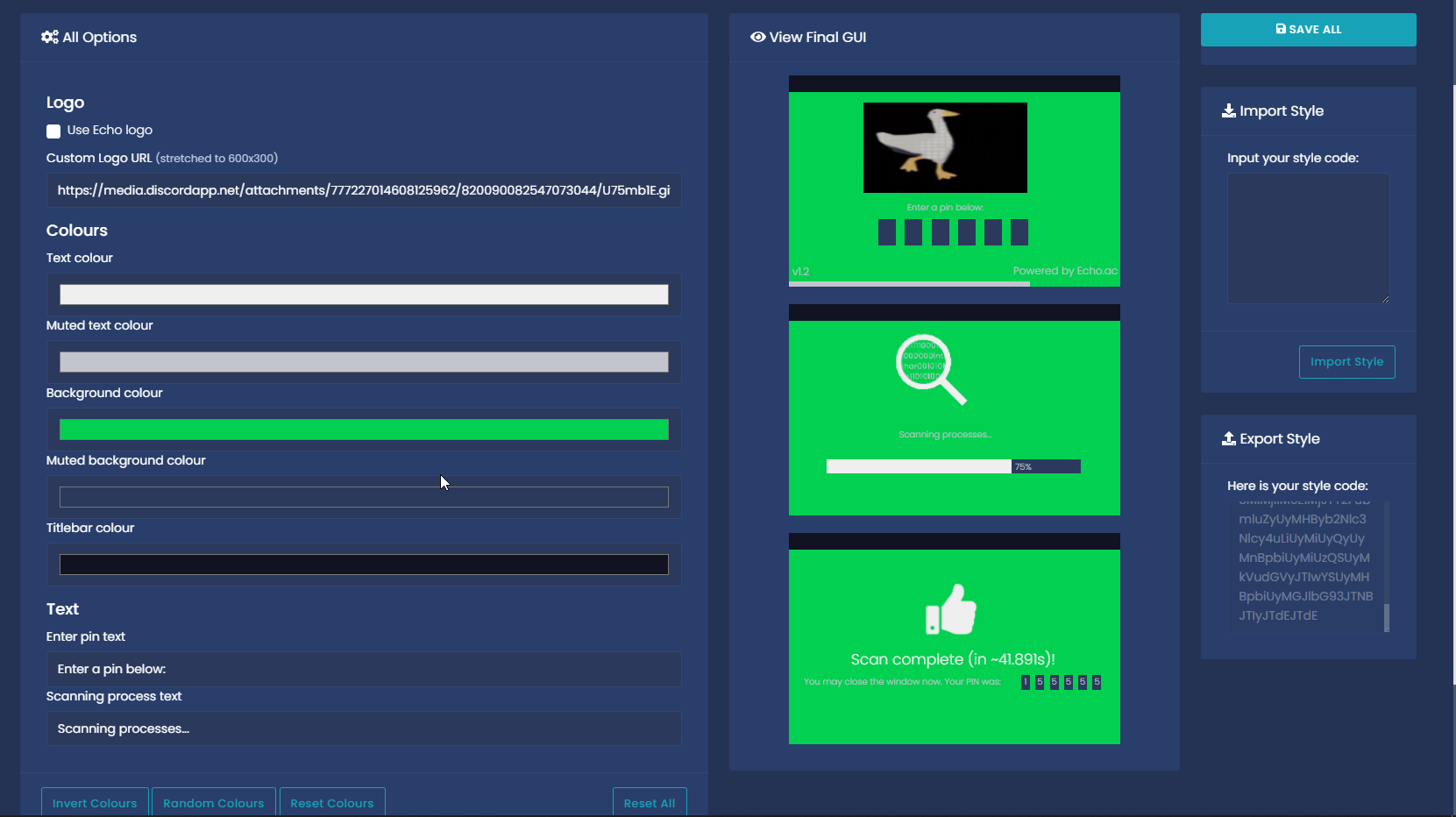
(For clarity, the next part has had the colours reset, so you can see the text easier)
Below that, we can see the “Text” part, this part can change what the GUI says, where it normally says “Enter your pin” and “Scanning processes” can be changed:
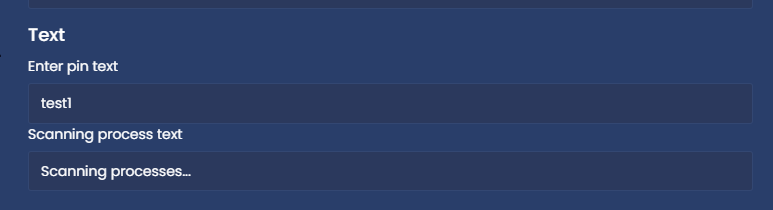
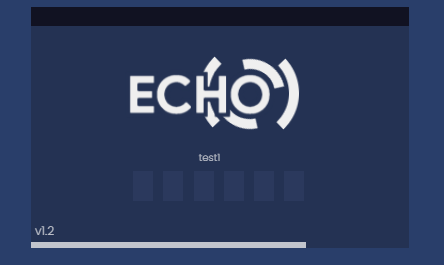
Now, if you look at the GUI. It should have changed the text, if it hasn’t, just click outside the text box:
- When you are happy with your design, you can click “Save all” in the top right to save it. Now, wherever someone downloads it with your pin or link, they will get the custom design
- Optional: You can import a custom style into echo by pasting one into the “Import Style” box and clicking the “Import Style” button, Try it out with this one: